
Check the camera settings for QR detection. On Pixel, look for Camera scan suggestions. On supported Galaxy phones, look for Scan QR codes. The location and wording depend on the model.
Try the dedicated scanner if the camera has no setting
On Pixel, open Quick Settings and look for Scan QR code. If your camera still gives no prompt, try the equivalent scanner on your device or read a saved photo in the browser.
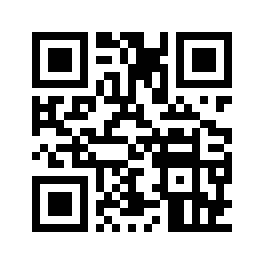
Test with a known QR code
- Turn on QR recognition in the camera settings if your phone provides it.
- Return to Photo mode and display the sample on another screen. Keep the entire code in view while the camera focuses.
- If the prompt still does not appear, save the sample and choose it in the image reader. The expected result is https://example.com/.
When only one code fails
Try better lighting and move back if the pattern is blurred. If the sample works but a shared photo does not, ask for the original file with the full border.
Frequently asked questions
Should I take a photo before scanning?
The camera prompt appears while you aim the camera. Take or save a photo if you want to open it later in an image reader.