
Start with your phone’s Camera for a code in front of you. If the code is saved as a screenshot, open it in Google Photos and choose Lens, or select the image in the browser reader.
Find the scanner on your model
On Pixel, check the Camera setting for QR scanning suggestions if nothing appears. On Galaxy, look for Scan QR codes in Camera settings. Some models offer a scanner tile in Quick Settings.
Compare Camera with a saved image
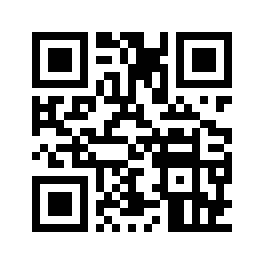
- Display the sample on another screen and frame the complete code in Camera.
- Save the same image, open it in Google Photos and choose Lens if it is available.
- If Lens is unavailable, select the saved file in the image reader. The sample should return https://example.com/.
Troubleshoot a missing prompt
Use the reference image to check whether the camera can scan any code. If the reference works and the target fails, check that the target is sharp and has a blank margin. If the feature is absent in Camera, try the Quick Settings scanner or the saved-image route.
Frequently asked questions
Do all Android phones use the same menus?
The camera and Quick Settings tiles vary by manufacturer and software version. Use the saved-image option if you cannot find the built-in scanner.