
Save the screenshot and choose it from your photo library in a browser-based QR reader. You can read a code on the same phone without pointing a camera at another screen. Pasting the image is another option if your browser supports it.
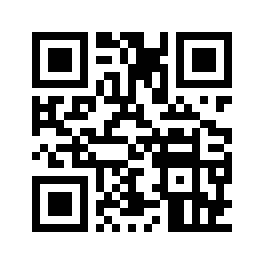
Choose a method: original image, screenshot, or camera?
Start with the original image if someone sent it to you. A screenshot of the chat captures surrounding text and can leave the code occupying only a small part of the image.
Take a screenshot if you can see the code but cannot save it. Upload an image for a code on your own phone, or use the camera when the code is on paper or another screen.
Read a saved image on iPhone or Android
- Save the image from the app or take a screenshot that includes the whole QR code.
- Open the reader and choose the image from your photo library. If the image is already on your clipboard, try Paste clipboard.
- Inspect the result. For a web link, check the destination domain before you open it.
Use a test image to isolate the problem
Save the example above and read it the same way as the original. If the result is https://example.com/, check the original for blur and missing borders. If the example also fails, switch to the file picker and confirm that the preview shows the image you selected.
Check what the result contains. You can read plain text immediately, check the domain before opening a link, or inspect the network name and password in a Wi-Fi result. Review the result before sharing a screenshot of it.
Check the margin and clarity when reading fails
Make sure the three corner markers and the light margin around the code are visible. If a chat app shrank or compressed the picture, try the original. When a screenshot contains several codes, crop to the intended code and its margin so a different code near the centre is not selected.
What if the paste button does not work?
Clipboard permissions and supported formats vary by browser. Choose the image from your photo library instead. Successfully decoding a link does not verify the site it points to.
Test the original before cropping
- Save the reference QR code and verify that the image reader returns https://example.com/.
- Choose the original screenshot. If the code is small, crop away unrelated content while keeping the blank border on every side.
- If clipboard access is unavailable, select the same image from your photo library.
Frequently asked questions
Do I need to crop the screenshot first?
Try the full image first if it contains one clear, complete code. Crop when the code is small or the image has several codes, leaving blank space around all four edges.
Why can I read the URL but not open it?
Decoding gives you the stored address. Opening it still depends on connectivity, access permissions, and whether the address is still valid. For an invitation, ask the sender to confirm the link is active.