
Paste a complete website address in the URL generator, generate the code and download the PNG. Read the file back before sharing. For a design that will be resized, check which vector format your printer accepts.
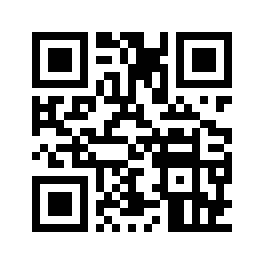
Use a URL visitors can open
For a first test, use https://example.com/. For a live file or invitation, try the link as a visitor to check that it does not depend on your own signed-in account.
Generate, download and verify
- Enter https://example.com/ in Website URL and choose Generate QR Code.
- Download PNG and select that file in the QR image reader.
- Confirm the full result is https://example.com/. Repeat with your live link, then verify it opens for the intended audience.
Test the final output
PNG works well for sharing at the generated size. Use SVG, PDF or EPS if your design requires a vector file. After placing it in the layout, keep the border clear and test at the actual print size.
Frequently asked questions
Can I change the URL inside a printed code?
A static code stores a fixed URL. Update the page at that address, redirect a URL you control, or generate a new image when the address changes.